JarVSJarVSGetting Started

Getting started with JarVS

JarVS is two apps that work together: a host app on your Mac or Linux machine that runs VSCode Server, and a client on Apple Vision Pro that connects to it over your local network. This guide walks you through the full setup.

Prerequisites

  • Apple Vision Pro
  • Mac (macOS 14+) or Linux (x86_64 / ARM64)
  • Visual Studio Code with the `code` CLI installed
  • Same WiFi network for initial setup

Install & setup

1

Install the host app on your Mac or Linux machine

This runs VSCode Server on your machine. On Mac it lives in your menu bar. On Linux it runs as a systemd service.

Download JarVS Host for MacmacOS 14 Sonoma or later
orbrew install jarvs-vision/jarvs/jarvs

Linux: curl -fsSL https://jarvs.space/install.sh | bash
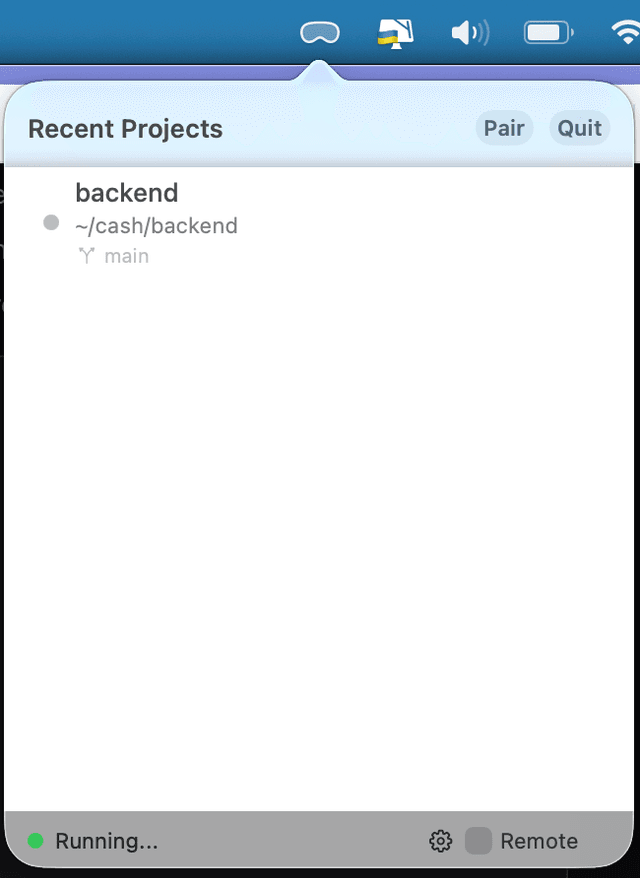
JarVS menu bar app on macOS showing recent projects
2

Get JarVS on Apple Vision Pro

Download the JarVS client from the App Store on your Apple Vision Pro.

Download JarVS for Apple Vision Pro
3

Connect & pair

Make sure both devices are on the same WiFi network. Open JarVS on your Apple Vision Pro and your host machine will appear automatically via Bonjour/mDNS.

  • No IP addresses to type, no port forwarding needed
  • On Linux, use 'jarvs pair' for manual pairing with a 6-digit code
  • After initial pairing, you can connect remotely from anywhere
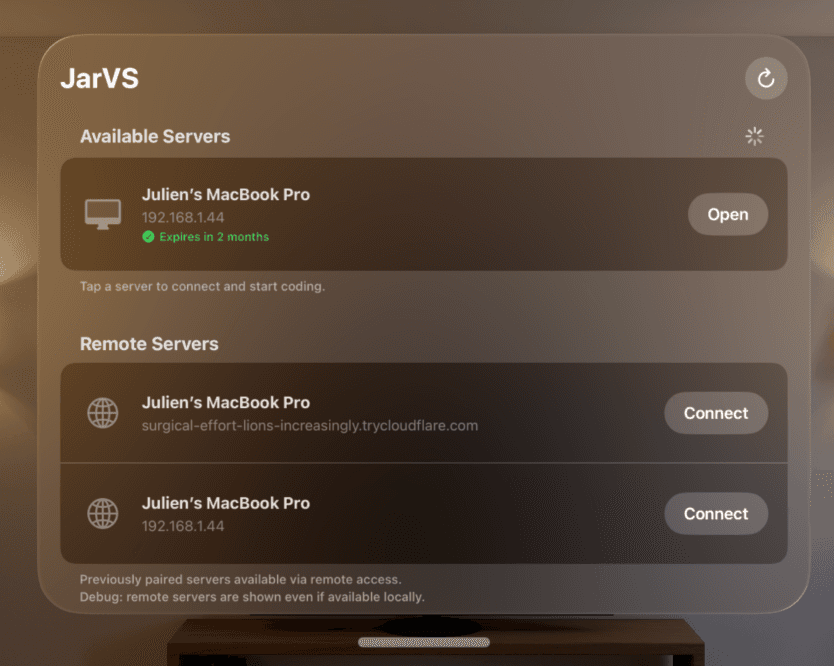
JarVS on Apple Vision Pro showing available servers and pairing options
4

Browse your files

Once connected, you can browse your file system right from Apple Vision Pro. Navigate through your projects and folders to find what you want to work on.

  • Browse your full directory tree from your headset
  • Navigate with the breadcrumb path bar at the top
  • Star your favorite folders for quick access
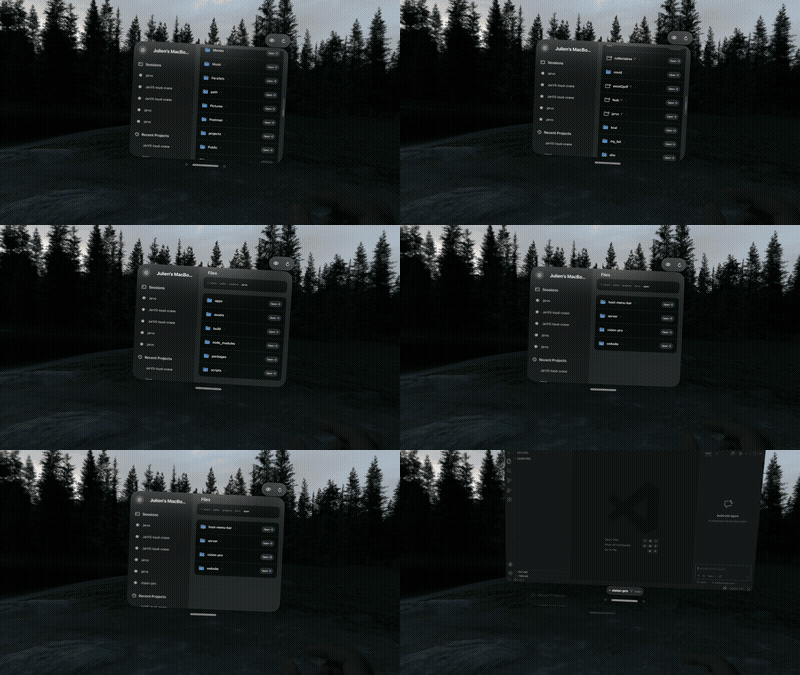
JarVS on Apple Vision Pro showing the file browser with project folders
5

Open your first project

Tap a project in the list to open a VSCode window. Each project gets its own floating window, color-coded so you can tell them apart at a glance.
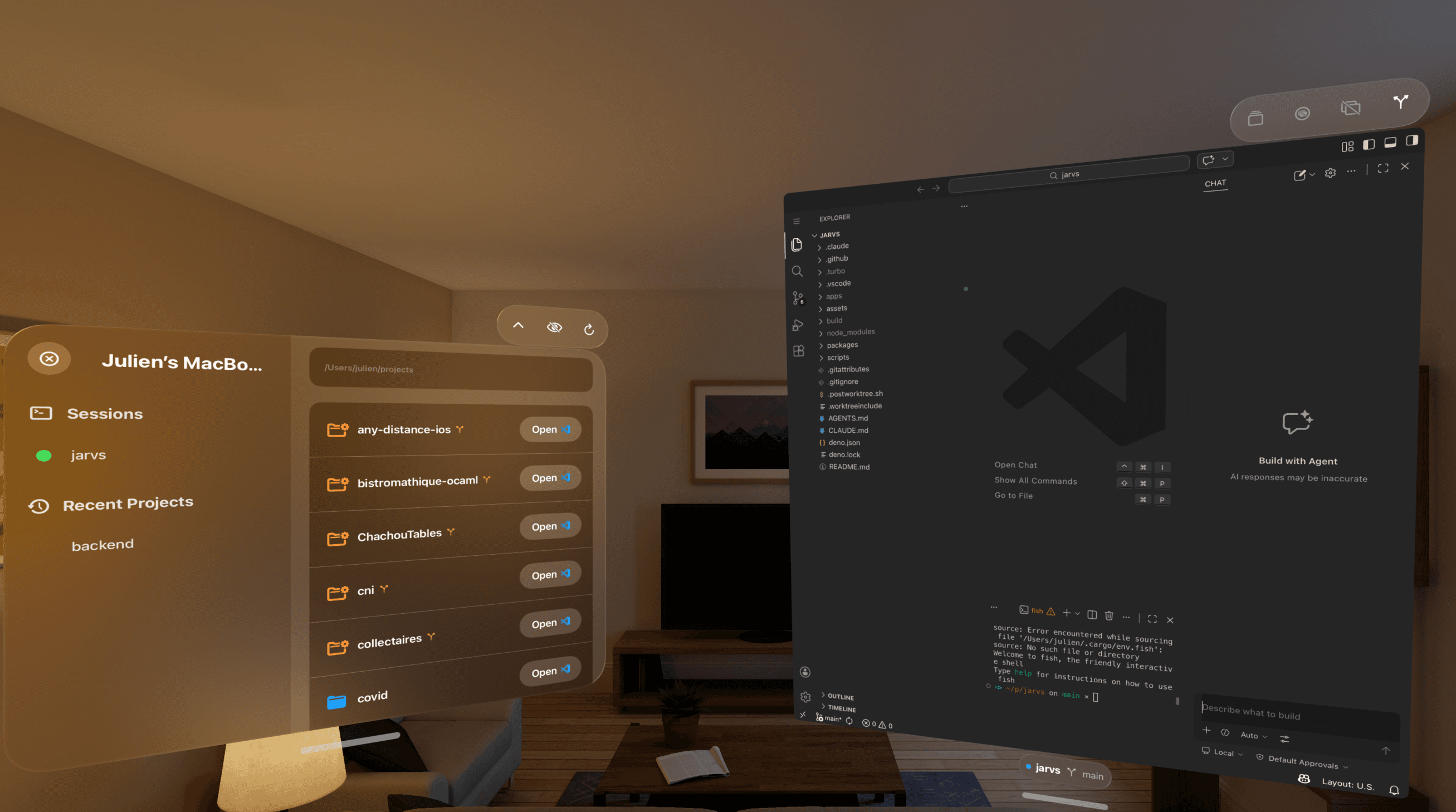
JarVS on Apple Vision Pro showing project list and a VSCode window

Frequently asked questions

Setup & Install

Why do I need two apps?
JarVS uses a client-server architecture: the host app (on Mac or Linux) runs VSCode Server (the same backend that powers vscode.dev), while the Apple Vision Pro app connects to it as a thin client. Your code stays on your machine, you get native terminal and tooling, and the Apple Vision Pro app stays fast because it only handles rendering.
Do I need VSCode installed?
You need Visual Studio Code with the 'code' CLI installed on your host machine. The JarVS host app uses it to run VSCode Server for the coding experience on Apple Vision Pro.
Which machines are supported?
Any Mac running macOS 14 Sonoma or later, or any Linux machine (x86_64 or ARM64) with the 'code' CLI installed.
Does it work with Linux?
Yes! The JarVS server runs standalone on Linux (x86_64 and ARM64). Install it with a single script, and it runs as a systemd user service. Pair with your Apple Vision Pro using the CLI: run 'jarvs pair' to generate a pairing code.
My host machine doesn't appear on Apple Vision Pro
Make sure both devices are on the same WiFi network and that the JarVS host app is running (menu bar on Mac, or 'systemctl --user status jarvs' on Linux). Check that your firewall isn't blocking local network connections. On Linux, you can also pair manually with 'jarvs pair'.

Using JarVS

Is it the real VSCode?
Yes. It runs the same VSCode Server that powers vscode.dev and VS Code Remote. Extensions, terminal, git, debugger: everything works.
Do my VSCode extensions work?
Yes. All your extensions, themes, keybindings, and settings carry over. Copilot, ESLint, Prettier, and anything else you use works out of the box because JarVS runs the real VSCode Server.
How many windows can I open?
As many as you want. Each project or worktree gets its own floating window. Windows are color-coded by project so you can tell them apart at a glance.
Can I open two windows for the same project?
No, each directory gets one VSCode window. But you can use git worktrees to check out multiple branches of the same repo into separate directories, and each worktree appears as its own project in JarVS. That way you get one window per branch, side by side. See the worktree setup guide for details.
How do git worktrees work with JarVS?
Each worktree appears as its own project in the connection list. Tap to open it in a new window. The typical workflow: create a worktree per task or feature branch, open each in its own spatial window, then code or run an AI agent in each one.
Which AI coding agents does it work with?
All of them. Claude Code, OpenCode, Codex, Aider, GitHub Copilot, and any other tool that runs in a VSCode terminal or as an extension.

Network & Security

Do I need a network connection?
For initial setup, your host machine and Apple Vision Pro need to be on the same local network (WiFi) to pair. After that, you can connect remotely from anywhere. Local connections work offline, making it great on planes.
How is the latency?
Single-digit milliseconds over local network. The experience feels completely native. Typing, scrolling, and code completion are all instant. There's no cloud server in the middle adding latency.
What happens when I switch between my Mac and Vision Pro?
Nothing breaks. Your code runs on your Mac the whole time. JarVS on Apple Vision Pro is just another way to see and interact with it. Take the headset off and your Mac has everything right there. Put it back on and your spatial windows are waiting.

Pricing

Is there a subscription?
No. JarVS is a one-time purchase with no subscriptions or recurring charges. The host app is free. Buy once, get all future updates included.

Still need help?

If you ran into an issue or have a question not covered here, reach out and we will get back to you.

Contact support